Open Virtual Sessions
See in platform guideNavigate to Virtual Sessions from the main menu to view the calendar dashboard with upcoming and past sessions.


Schedule a virtual learning session and invite students from any combination of departments, classes, and sections using the Create Virtual Session form.
Navigate to Virtual Sessions from the main menu to view the calendar dashboard with upcoming and past sessions.
Click to create a new session. The Create Virtual Session modal opens with fields for session name, meet link, description, session type, and recurrence.
Fill in Session Name (required), paste your Google Meet or other meeting URL in Meet Link (required), and add an optional Description with the agenda or notes for admins and students.
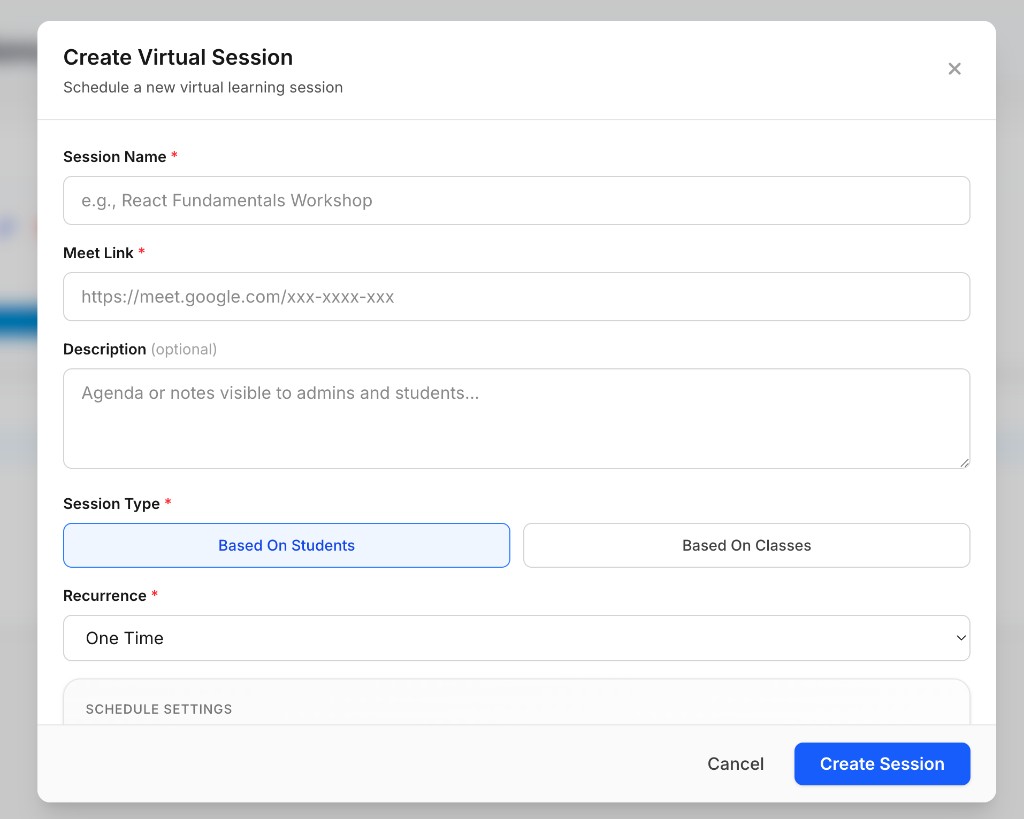
Under Session Type, select Based On Students to pick individual students, or Based On Classes to target by class batches. Set Recurrence to One Time or your preferred repeat pattern.
In Schedule Settings, pick the Session Time and Date for when the meeting will take place.
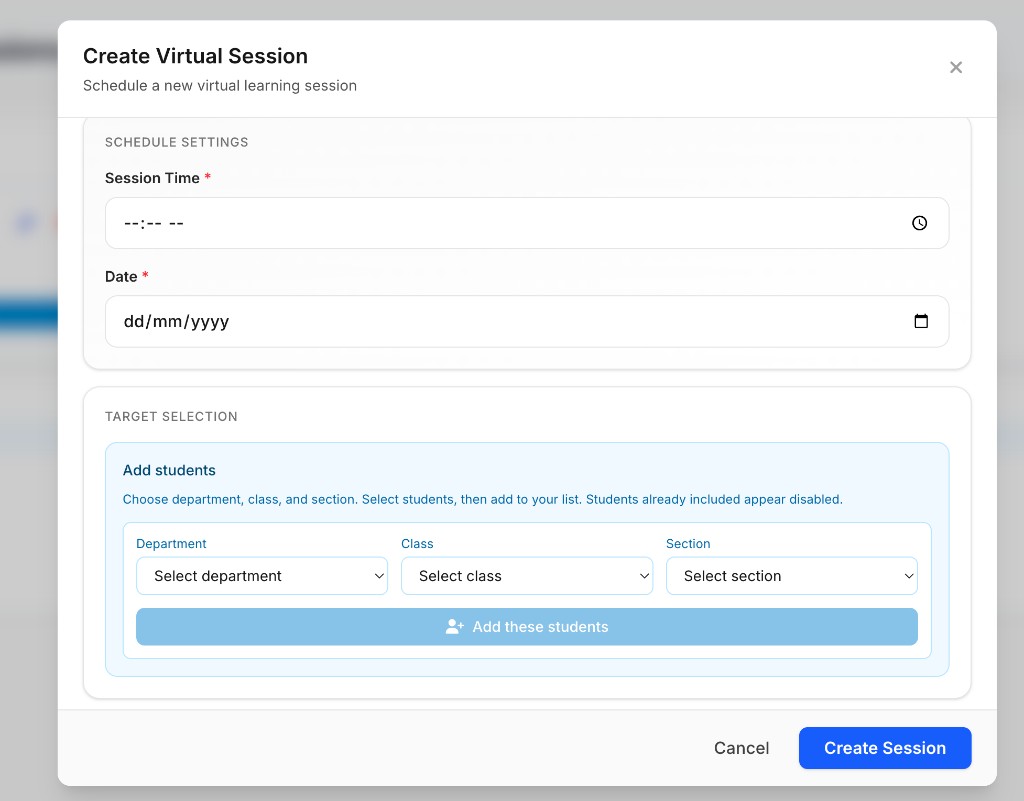
Under Target Selection, choose Department, Class, and Section from the dropdowns. Tap Add these students to include them. Repeat for other batches to invite students from any or all departments, classes, and sections.
Review the participant list, schedule, and meet link, then click Create Session. Invited students will see the session on their calendar with the join link.
We'll ask a few quick questions, then point you to the right help